
Incredible
Your Android phone, linked to your Mac.
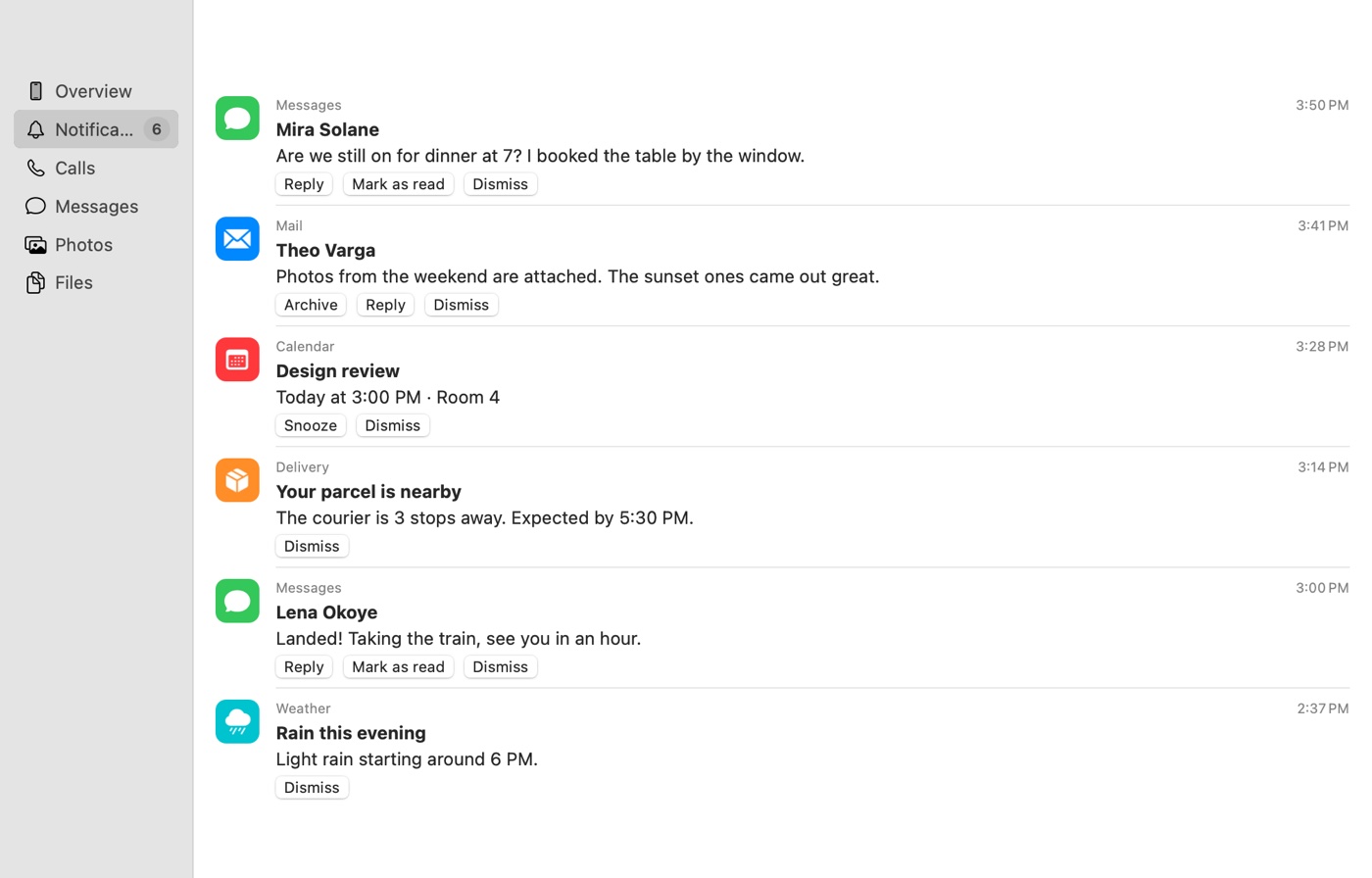
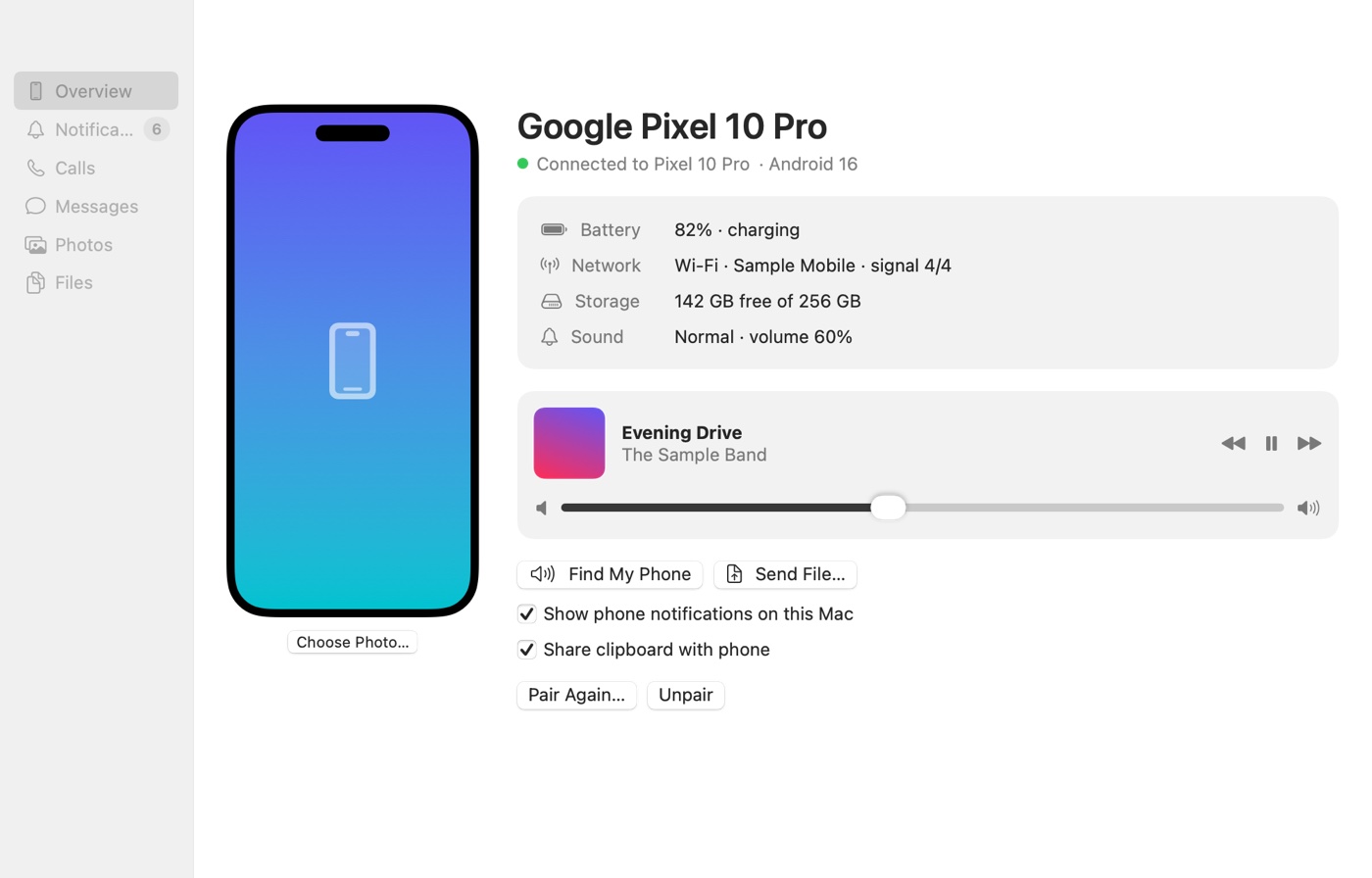
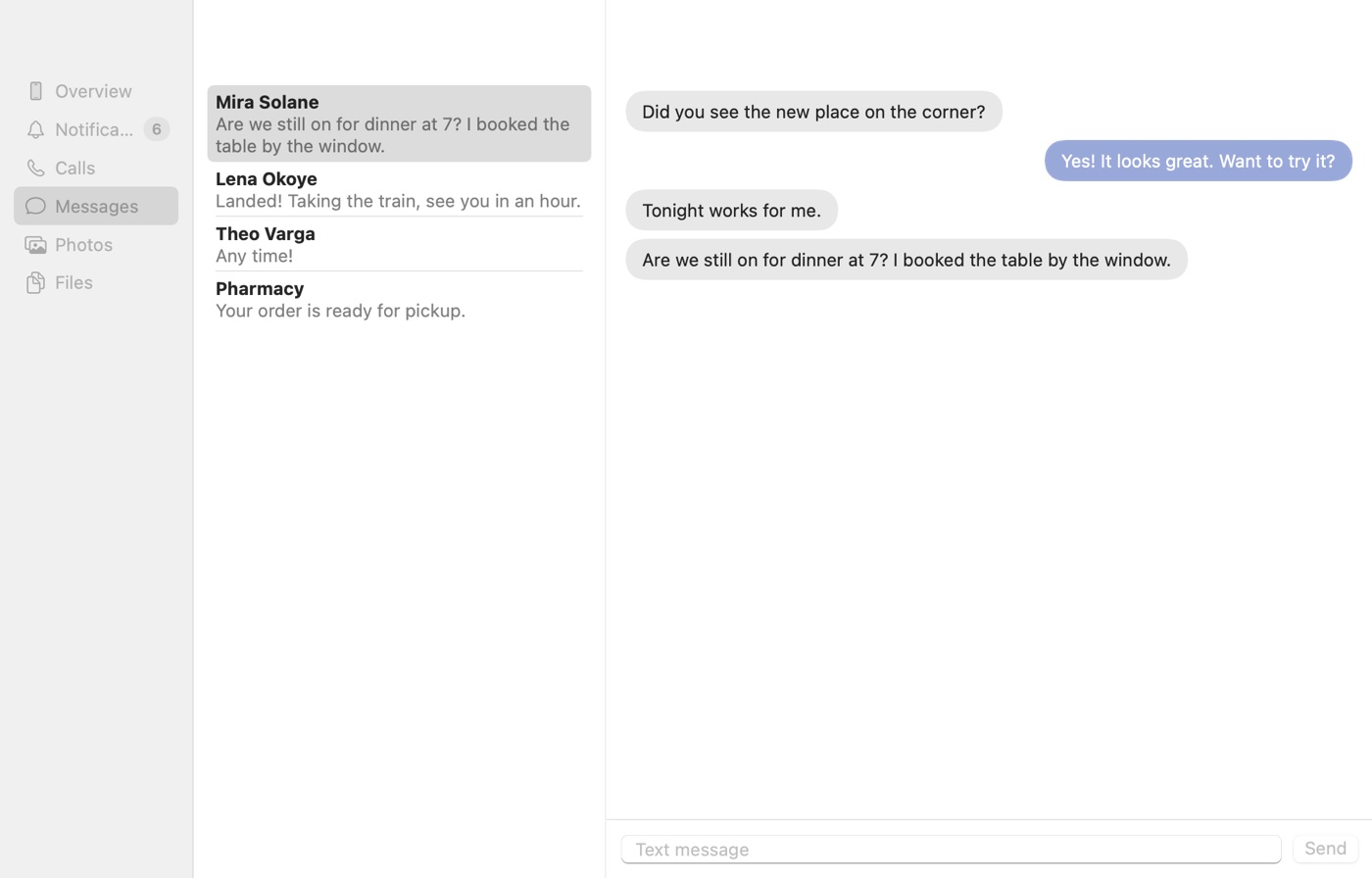
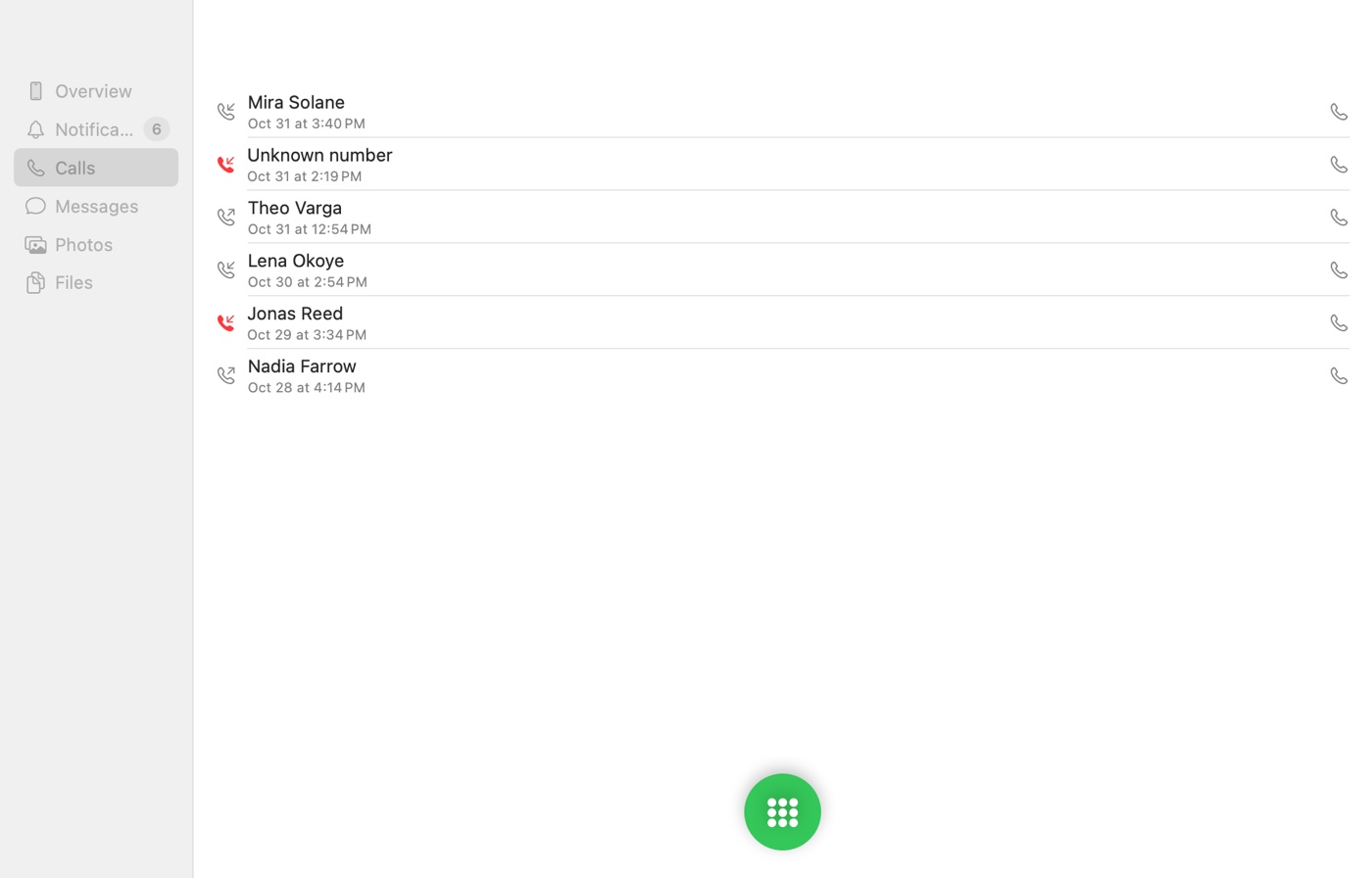
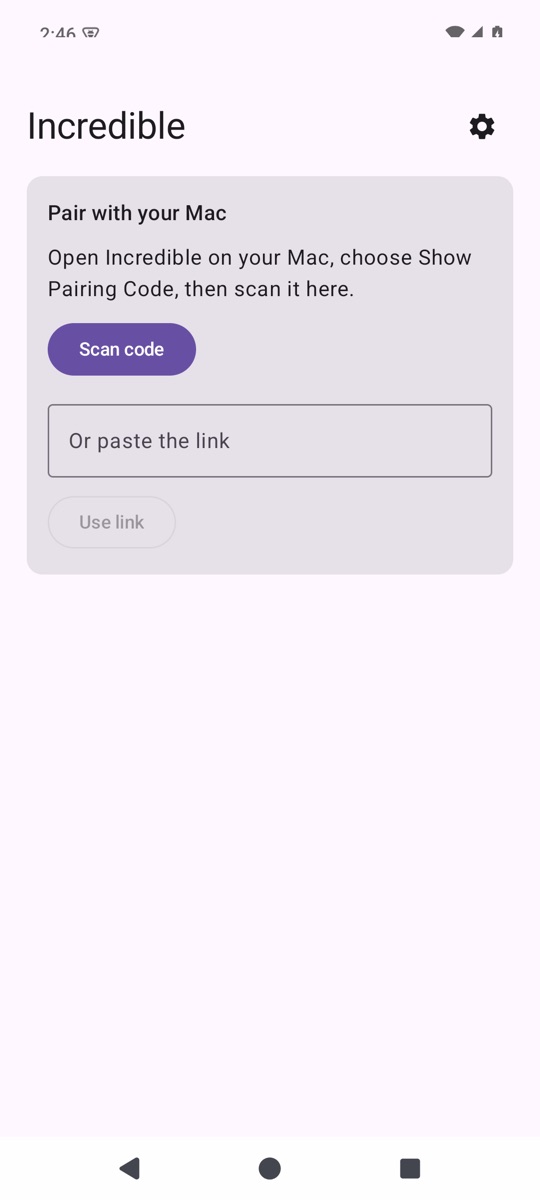
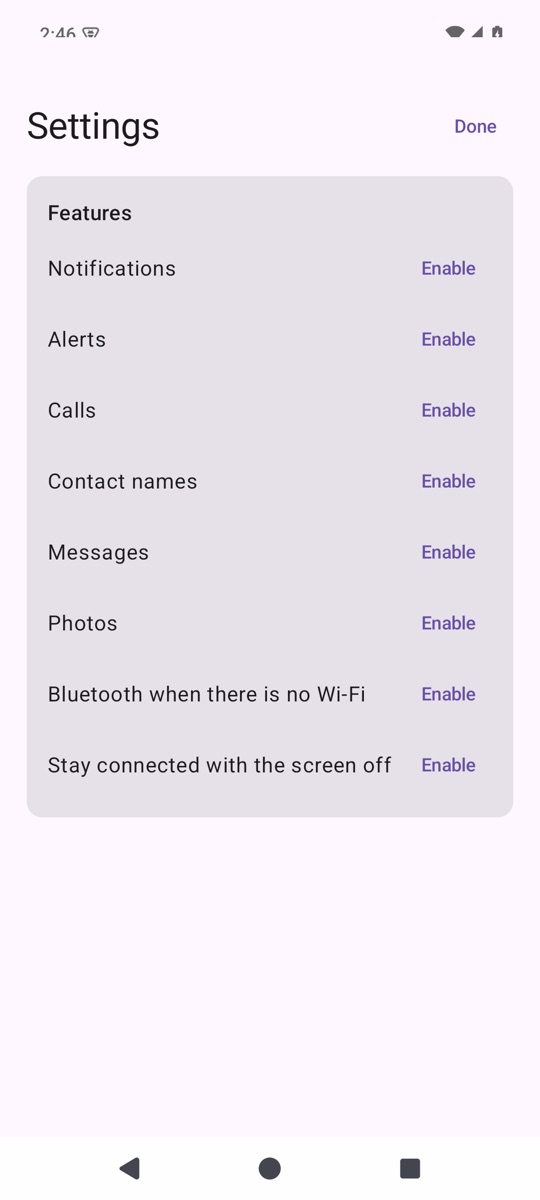
Incredible connects an Android phone to a Mac over your local network. Traffic is encrypted end to end with a key shared once by QR code. There is no account, cloud service or server.
What it does
Notifications
Banners on the Mac, with dismiss synced both ways, action buttons and inline reply.
Calls
Answer, decline, hang up and dial from a floating panel. Call audio stays on the phone.
Messages
Read and send SMS conversations.
Files and photos
Move files over USB cable, Wi-Fi or Bluetooth, and drag recent photos to Finder.
Clipboard and links
Mac clipboard reaches the phone automatically, and links open on either side.
Media
See what's playing, with playback controls and phone volume.
Phone status
Battery, network, signal, storage, ringer and volume at a glance.
Find My Phone
Rings at full alarm volume, even on silent.
Getting started
- Install the app on both the Mac and the phone, and keep them on the same network.
- On the Mac, choose Show Pairing Code.
- In the phone app, choose Scan code, then confirm.
- In the phone app, tap Enable for each feature you want.
- Allow notifications when the Mac asks.
Good to know
- If Android blocks notification access with "Restricted setting", open the app's page in system Settings, then the ⋮ menu, then Allow restricted settings.
- Treat the pairing code like a password. Anyone who has it can read what your phone sends.
- It works on a local network or within Bluetooth range, not between networks.
- SMS only. RCS chats appear as notifications instead.
- One phone per Mac.
File checksums (SHA-256)
- Incredible-1.0-android.apk
f4032b09a0c28f1a5f3ecd45e25cd9cc6457d440a34867608492105e1b8e5fbb- Incredible-1.0-mac.zip
7bc7576e54bf17cbf97ca881dab7307211e7f4b1a0d7b351a3a5b94a67415550